配置网络
公司使用的X86小工控机,大多有多个网卡,一般一个无线网卡,两个有线网卡.多数情况下,我们可能是使用的WIFI网络,这样比较方便,有时为了HA提供的服务折稳定性,我们尽量使用LAN线网络,避免无线网信号质量的问题。所以就涉及到配网的问题。
HomeAssistant的网络配置,在系统没有安装成功之前,不能通过web进入网页界面时,配置网络只能通过自带网络配置命令来进行.
熟悉网络配置命令
HomeAssistant Cli 提供了默信折network配置命令如下:
ha netWork
Useage:
    ha network [command]
Examples:
    ha network info
    ha network interface options
Available Commands:
    info Shows information about the host network
    reload Reload Network information the host
    scan Scan for Access Points on a wireless interface.
    update Update settings of a network interface
    vlan Create a new VLAN on an ethernet interface
Flags:
    -h, --help help for network
Global Flags:
    --api-token string Home Assistant Supervisor API token
    --config string Optional config file (default is $HOME/.homeassistant.yaml)
    --endpoint string Endpoint for Home Assistant Supervisor (default is'supervisor')
    --log-level string Log level (defaults to Warn)
    --no-progress Disable the progress spinner
    --raw-json Output raw JSON from the API
Use "ha network [command] --help" for more information about a command.
这个ha network命令,大约如下几个功能
- info 显示网络配置信息
- reload 重新加载网络
- scan 扫描网络
- update 配置网络
我们在使用这个命令时,可以使用其简写,比如省去前面的ha,还可以省去后面的work 比如,我们想查看网络配置信息,可以用如下命令来进行
net info
这条命令就会把所有的网络配置信息全部显示出来,只是如果网卡较多,我们没有法在一屏全部阅读完,所以这就引发另一个问题.netwrok所有的子命令,后面都是可以或必须跟着操作对像来进行的,具体的就是,操作或显示哪个网卡接口.一般情况下是如下型式
net [command] [interface]
即
net [子命令] [网卡名称]
那么如何查看网卡名称呢,在haos 的cli控制台界面,任意时间,同时按下 ctrl+c 后,ha的界面返回到待机界面,如下图所示.
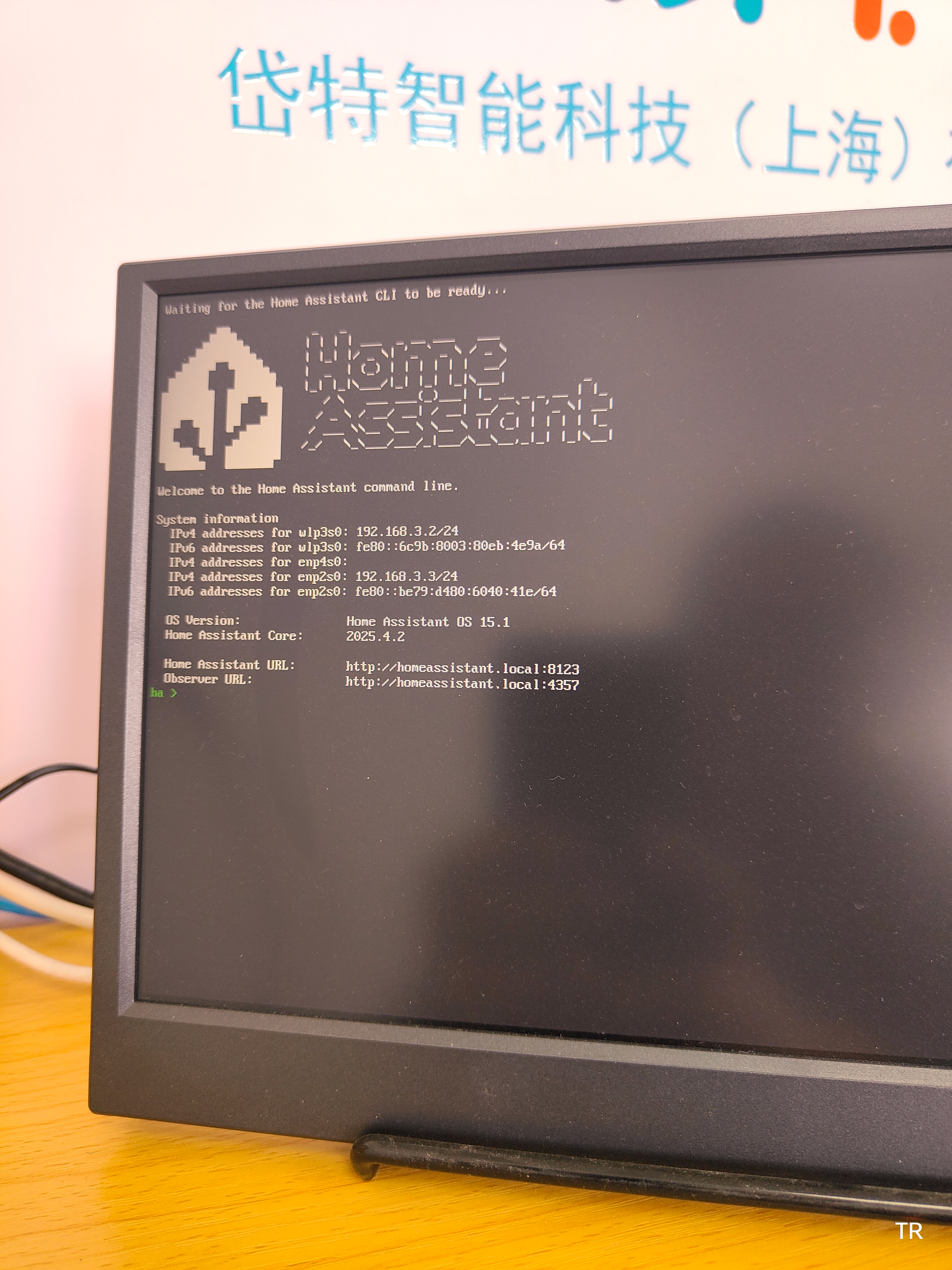
图中共显示了三个网卡接口:
- wlp3s0 这个是无线网卡接口的名称,一般情况下w字符打头的我为无线网卡
- enp2s0 这个对应小主机上就是LNA1,有线网卡1的名称
- enp4s0 这个对应小主机上就是LNA2,有线网卡1的名称
查看到了这三个网卡名称,我们就可以对网卡进行查看信息配置等.
对有初装的HAOS还有准备进行Udate的小主机,最好,就是在路由器端默认提供科学上网 ,否则在新安装折初始化那里就会被永远卡住,无法安装成功,如果是自动更新,那么将会更新失败.
配置网络
一般情况下,对于enp2s0,enp4s0,如果路由器端提供了自动获取IP地址功能,则无需配置,网线插入即可使用。
但是对于比较复杂的网络则需要配置,同样,如果想使用wifi网络,也需要配置 .
配置网络的命令如下:
ha > net update
Usage:
  ha network update [interface] [flags]
Aliases:
  update, set, up
Examples:
  ha network update eth0 --ipv4-method auto --ipv6-method disabled
Flags:
  -e, --disabled                   Disable interface
  -h, --help                       help for update
      --ipv4-address stringArray   IPv4 address for the interface in the 192.168.1.5/24
      --ipv4-gateway string        The IPv4 gateway the interface should use
      --ipv4-method string         Method on IPv4: static|auto|disabled
      --ipv4-nameserver stringArray IPv4 address of upstream DNS servers. Use multiple times for multiple servers.
      --ipv6-address stringArray   IPv6 address for the interface in the 2001:0db8:85a3:0000:0000:8a2e:0370:7334/64
      --ipv6-gateway string        The IPv6 gateway the interface should use
      --ipv6-method string         Method on IPv6: static|auto|disabled
      --ipv6-nameserver stringArray IPv6 address for upstream DNS servers. Use multiple times for multiple servers.
      --wifi-auth string           Used authentication: open, wep, wpa-psk
      --wifi-mode string           Wifi mode: infrastructure, adhoc, mesh or ap
      --wifi-psk string            Shared authentication key for wep or wpa
      --wifi-ssid string           SSID for wifi connection
Global Flags:
      --api-token string           Home Assistant Supervisor API token
      --config string              Optional config file (default is $HOME/.homeassistant.yaml)
      --endpoint string            Endpoint for Home Assistant Supervisor (default is `supervisor`)
      --log-level string           Log level (defaults to Warn)
      --no-progress                Disable the progress spinner
      --raw-json                   Output raw JSON from the API
这条命令ha network update [interface] [flags],提供了很多功能,它可以配置wif网络,可以对指定的网卡配置ip4/6的IP地址,网关,是否启用等.因此可以在实际工作中灵活使用. 具体用法简译如下
ha > net update
Usage:
  ha network update [interface] [flags]
Aliases:
  update, set, up
Examples:
  ha network update eth0 --ipv4-method auto --ipv6-method disabled
Flags:
  -e, --disabled                   禁用接口
  -h, --help                       显示更新的帮助信息
      --ipv4-address stringArray   接口的 IPv4 地址,例如 192.168.1.5/24
      --ipv4-gateway string        接口使用的 IPv4 网关
      --ipv4-method string         IPv4 方法: static|auto|disabled
      --ipv4-nameserver stringArray 上游 DNS 服务器的 IPv4 地址,可多次使用以指定多个服务器
      --ipv6-address stringArray   接口的 IPv6 地址,例如 2001:0db8:85a3:0000:0000:8a2e:0370:7334/64
      --ipv6-gateway string        接口使用的 IPv6 网关
      --ipv6-method string         IPv6 方法: static|auto|disabled
      --ipv6-nameserver stringArray 上游 DNS 服务器的 IPv6 地址,可多次使用以指定多个服务器
      --wifi-auth string           使用的认证方式: open, wep, wpa-psk
      --wifi-mode string           WiFi 模式: infrastructure, adhoc, mesh 或 ap
      --wifi-psk string            WEP 或 WPA 的共享认证密钥
      --wifi-ssid string           WiFi 连接的 SSID

Global Flags:
      --api-token string           Home Assistant Supervisor API 令牌
      --config string              可选的配置文件路径(默认值为 $HOME/.homeassistant.yaml)
      --endpoint string            Home Assistant Supervisor 的端点(默认值为 `supervisor`)
      --log-level string           日志级别(默认值为 Warn)
      --no-progress                禁用进度条
      --raw-json                   以原始 JSON 格式输出 API 数据

FATA[0000] Error while executing rootCmd: accepts 1 arg(s), received 0
下面,我们就以配置wifi联接到网络为例说明一下:
比如我们默认的WIFI热点如下:
wifi info:
ssid:DT_IoT_GateWay
passWord:HnczjTyrb0
那根据我们上文查看到的无线网卡的名称:wlp3s0
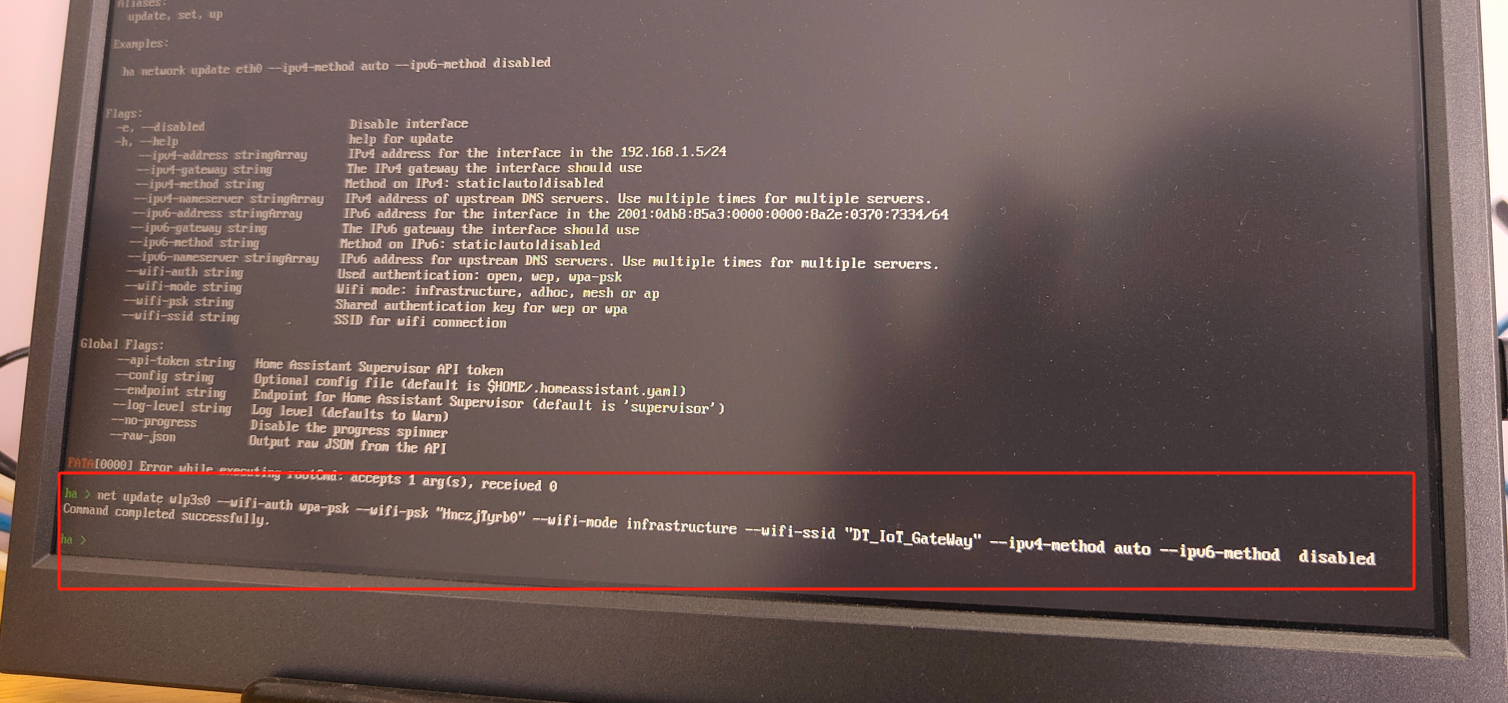
我们使用如下配置命令,来让haos小工控机联上wifi网络:
ha network update wlp3s0 --wifi-auth wpa-psk --wifi-psk "HmczjTYrb0" --wifi-mode infrastructure --wifi-ssid "DT_IoT_GateWay" --ipv4-method auto --ipv6-method disabled
这条命令解释如下:
- 指定wifi的密码方式为:wpa-psk (--wifi-auth wpa-psk).
- 指定wif的密码为:HnczjTyrb0 (--wifi-psk "HmczjYrb0").
- 指定网卡接口模式为:infrastructure 即常规模式 (--wifi-mode infrastructure).
- 指定要联接的网络SSID:DT_IoT_GateWay (--wifi-ssid "DT_IoT_GateWay").
- 指定IP地址获取方式(静态、自动、禁用):自动 ( --ipv4-method auto).
- 指定是否禁用IpV6:禁用 (--ipv6-method disabled)
如下图所示,我们成功的使用这条指令,配置好了wifi网络:
如下所示,配网成功后,路由器已自动为其分配好了ip地址:
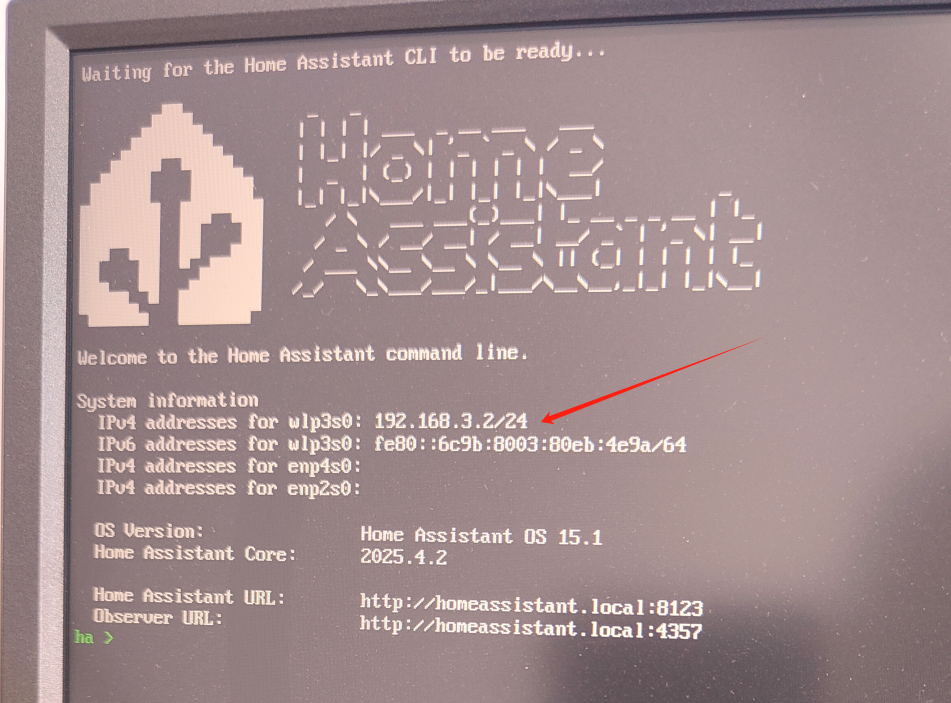
此时,我们在浏览器中输入网址http://192.168.3.2:8123 即可进入haos的web页面.
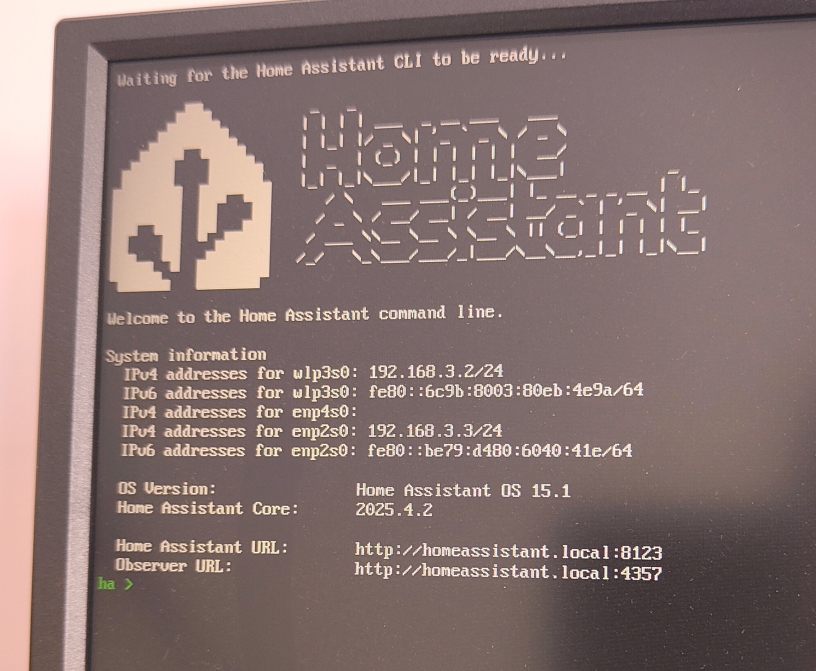
下图是无线网卡与有线网卡同时启用的情况,可以看到,两个网卡都被正确的分配到了IP地址:
在系统安装好初始化完成后配置网络
系统初始化完成后,仍然可以调整配置网络,
设置-系统-网络 中配置网络接口可以进行网络配置
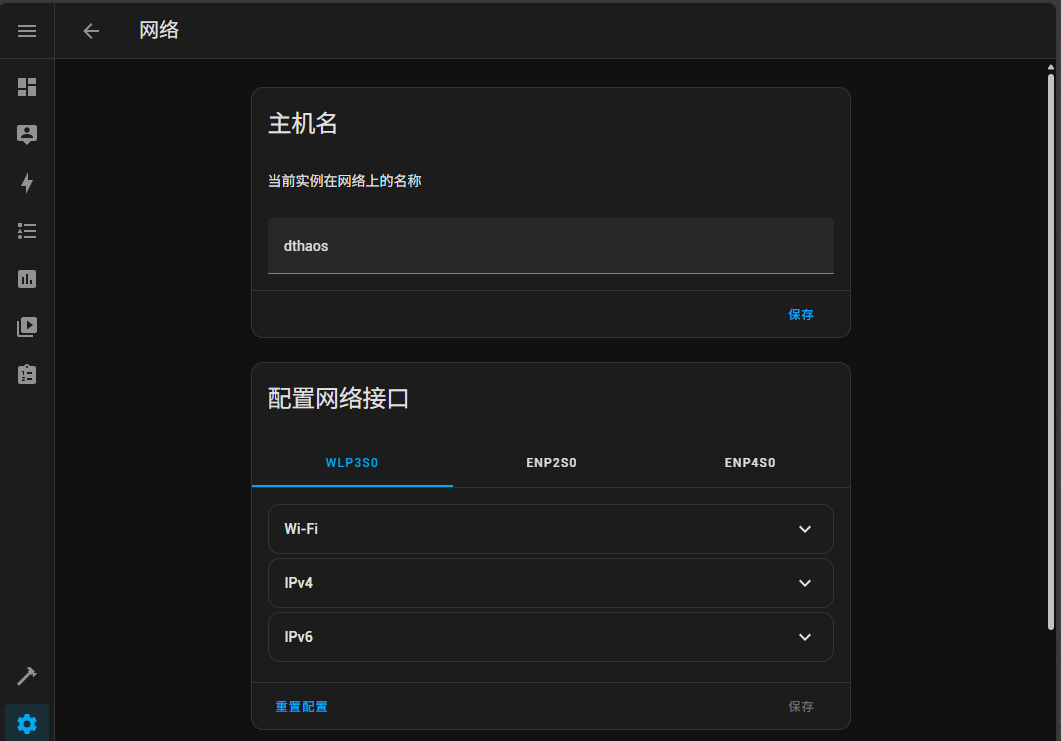
在这里你可以看到我们的三块网卡,wlp3s0,enp2s0,enp4s0,可在此处配置,每个网卡的IP,子网,网关,DNS等,也可以配置wi-fi热点.